
 I’ve finally gotten a GPS unit, and getting it to play nice with my iMac has been an education. The unit is a Garmin eTrex Vista Cx, which is being phased out in favor of the Vista HCX, which is supposed to work much better in deep tree cover.
All GPS units do the same thing: pick up signals from satellites. All work pretty much the same in recording a track of everywhere you go. The trick for dirt-walkers of our ilk is getting the track out of the unit and pasted onto some kind of electronic map so you can show everybody else where you hiked. The Vista Cx has a USB cable that connects to a chip on the unit; it contains files with .gpx extensions that contain tracks, routes and waypoints. Plug in your unit and launch some GPS connection software, hit the “import” command and voila, your track is on your Mac. (See my technical note at the bottom for more on how this works on Garmin units).
Pretty much any GPS unit with a USB connection should be able to communicate with a Mac (and a PC for that matter, but I’ll stick to what I know here; the concepts are the same regardless of which OS drives your computer). There are commercial Mac-specific GPS programs out there (here’s a list at the site of the makers of GPSy) but I always start out by tracking down the best free stuff.
I have one primary use in mind for my unit: slapping a hiking track onto a Google terrain map for posting here (I’ll get all geocachey someday; Keep in mind it took me four years to try orienteering). Google terrain maps are the closest free thing to having the shaded-relief cartography we usually have to pay for. They depict changing terrain far more graphically (and usefully) than Google Earth images. They are lame substitutes for professionally produced maps — with essential details like identifying trails you didn’t use — but they can be thrown together pretty quickly and e-mailed to your hiking cronies. What I’ve learned so far:
- EveryTrail.com is very handy. This site allows you to import your GPS tracks and photos from the same site, and can match time stamps to place pictures at key places along the way. It also has easy imports from Flickr. Here’s one I did at Mission Peak yesterday. Here’s the map I created:
- GPSvisualizer is a great companion to EveryTrail. You upload your tracks to the site and choose one of a zillion options for making the map just the way you like it. When you’ve got your map done, you can import it directly into EveryTrail.
- GPS Photo Linker is a handy free app for adding geographic data to your photos. EveryTrail also will do this but I had better luck with Photo Linker. Just drag the photos you want to add to your hike into a window on Photo Linker, and click some buttons to add the data to your pictures. Upload to Flickr and import into EveryTrail and you’re all set.
- LoadMyTracks can fetch tracks from your GPS or from a GPS file and then it does something cool: offers the option of uploading them directly to GPS Photo Linker, which makes it all that much quicker to build an EveryTrail project.
- RoadTrip from Garmin is an essential free app for Mac users. It lets you import and export tracks, either directly from your GPS unit or from a file. I used it to create the track above, which was imported into Photo Linker and GPS Visualizer.
- GPS Babel is must-own freeware for everybody — even if you don’t own a GPS unit, you can use it to download other people’s tracks and translate the data into KML files that can be imported into Google Earth for all kinds of fun and games, such as:
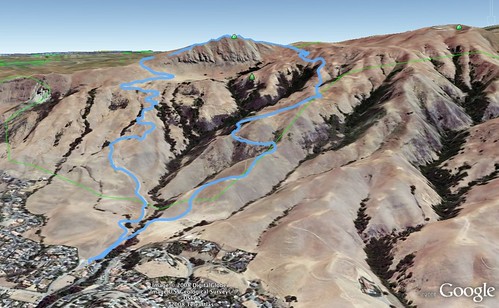
Google Earth lets you save your creations as an image that can easily be uploaded into Flickr or other sites.
- Google Maps allows a GPS layer — you have to create your KML file and upload it somewhere. Instructions here.
- Technical note for Garmin users: If you plug your unit into your Mac’s USB port, all you have to do is launch Garmin RoadTrip or pretty much any other GPS application to communicate with the GPS unit. There is an option to mount the internal memory chip to the desktop (as a disk called “no name”), but making the chip accessible to the desktop blocks it from talking to most GPS apps. I got ahead of myself in reading the instructions and thought I had to mount the chip to the desktop to communicate with my eTrex — but doing so interrupted most up/downloads (it would download tracks via RoadTrip, but no routes or waypoints, and wouldn’t connect at all with the other apps). The unit’s much smarter than I expected it to be.
Horse Heaven Trail to Mission Peak Summit at EveryTrail
Map created by EveryTrail.
Those are the basics. Share any additions or insights in the comments.
Links:
I had some difficulties geo-tagging my photos with GPS Photo Linker, until I remembered one thing. The links are based on time stamps. If your GPS and camera are not synchronized, the results will be less than optimal.
Also remember to adjust both for day light savings.
It took Garmin a lot longer than they said they would but now they, my Mac, and my Garmin GPSMap 60cx are finally fully compatible… I remember writing a nasty email to them about a press release that claimed full compatibility at the end of 2006. I bought my Garmin because of that news release in the hopes that I wouldn’t be waiting to long. HA! Better late than never. The Garmin / Mac lovefest website is here (I didn’t see it included above): http://www8.garmin.com/macosx/
P.S. My Mac national geographic TOPO! software has been compatible with my Garmin unit all along… albeit TOPO! is quite buggy, but I love it anyway.
That’s a great article – answered the questions I had, and some I didn’t know I had, even though I’m a Windows user. I use a gps in a completely different manner, since I go long distances, and have to worry about how long the battery will last. I print maps in advance with UTM coordinates, and just turn on the gps when I want to exactly where I am. I’ll have to try it in tracking mode using your techniques, when hiking around here. I never get lost on distance hiking, but every year on the East Bay Regional Parks Trail Challenge, we manage to get lost once or twice, of course blaming the EBRP maps/and or directions. GPS tracking would be good. I linked to your post on my John Muir Trail page and the PCT page, even though it’s slightly off topic. Again, a great article.
That’s great information. I’ve been using MacGPSPro by James Associates, in Nederland CO. It ain’t free but there are regular updates, and they respond to requests for help. Like Rebecca I use a Garmin 60cx and have no complaints. Up till now I’ve been downloading freebie CA topos from CASIL (in Davis, CA), and dump my tracks and waypoints right on the maps. Helps greatly to find camera traps left in remote off-trail locations. Now I’m looking forward to downloading on Google maps — thanks for those resources.
Thanks for all the feedback, folks.
I checked my digital camera’s clock and noted it was 30 seconds ahead of the eTrex’s clock, which is handy because that’s about how long it would take to stop, get my cam out of its bag, frame the shot and click.
I wonder how my unit will work in the redwoods and other deep-canopy situations; I’ve seen some griping online about it. I have no actual money in this unit; I bought it with rewards points from my credit card so I’m not too worried about how it fares. It picks up satellites in my fourth floor apartment.
Tom – you can improve your chances in the deep stuff, a bit, by letting the GPS receiver track for 12 minutes before you take off. This will allow it to collect the latest data on the location of each satellite (the message is 30 seconds long, thus 12 minutes for 24 satellites), enhancing its ability to lock-on to the satellites in a challenging environment. Putting it on the dashboard on the drive over will be sufficient.
Your eTrex Vista Cx is compared with related models in this detailed and informative review:
http://gpsinformation.us/vistacolor/etrexvistacolor.html
Another review at the same site gives even more detail to the HCX version:
http://gpsinformation.org/penrod/VistaHcx/vistahcx.html
Conclusion: the Cx is quite usable and even has little advantages like being able to continue recording barometrics while turned off.
=====
Of more general interest to Mac gps users: the Ascent mac-only app by montebellosoftware.com is a shareware app worth registering for (even tho its trial limitations are few). This takes .gpx files and plots them over appropriate USGS or Google maps automatically, and allows color-coding the track by speed, slope, elevation, heartrate (if you’re recording that), etc. Target demographic is hikers, cyclers and/or fitness freaks.
Not all GPS are created equal. 2 technologies that are becoming standard (and to confirm you have) are a SiRF chip and WAAS. I won’t bore you but these are state-of-the-art goodies.
Magellan’s Triton 2000 has a built in recorder (yeah), 2 MP camera, an SD card slot and a tiny flashlight. Neato torpedeo!
Rick D
Great information. I have been battling with my GPS and mac for a while now, and it is good to know there is hope.
Hello!
I’m a little late to this party, but I hope you don’t mind. 🙂
Today, I took an old (1998 vintage) GPS unit on a hike for a trial run. I have not had very much time to spend with this device since I bought it used from a friend. I took the coordinates of several locations with this unit for the first time.
This activity, and then recording my findings on my computer, raised a question for me: are that any Mac User Groups devoted to GPS users / geocachers / GIS professionals/enthusiasts? Are there any MUG forums that offer SIGs (special interest groups) for GPS technology?
I wondered if anyone knew of any Macintosh software I and other GPS users could use to plot coordinates on a map. I would love to see if they could be applied to Google Earth. This would help tremendously with local trail scouting efforts.
This old unit (a Garmin GPS III Personal Navigator) doesn’t offer a USB port.
Walt,
I have a Garmin III+ that still takes great waypoints, but I have to use a friends PC to download points or tracks. Let me know if you find something to get beyond the serial cable for my MAC.
A stil-active Yahoo group, despite its moribund wiki:
http://macmap.pbwiki.com/
— covers all sorts of vintage topics.
Upthread I mentioned ‘Ascent’ by MonteBelloSoftware.com – they’re still in business and their Mac-only program does great gpx plots.
For plotting a gpx file via web page, it’s hard to improve on gpsvisualizer.com – they even do elevation profiles now.
And for fora on GPS generally, the geocachers are where the action is:
http://forums.groundspeak.com/GC/index.php?showforum=11
Hello, can you help me?
A volunteer trails organization I work for has given me a new task: find a new multi-purpose GPS unit. The one I used before went kaput, so it’s no longer available.
I’ve mentioned the old GPS unit before, but now the move to find a new unit has kicked into high gear.
I’m looking at a couple of different manufacturers, and in a couple different price ranges and feature sets…
The unit must be hand-held, weather-resistant, and capable of being used for both hiking use and automotive (highway driving/direction finding) use. Common uses will be recording waypoints to transfer to a computer so that coordinates for problem areas on a trail can be recorded and repaired, or coordinates can be taken to establish new trails or re-routed trails. The recorded waypoints will be taken back to a computer and transferred to Google Earth for aerial visual analysis and planning activities.
USB connection is must for the unit. Unit will likely work with a Macintosh computer.
The unit should use AA batteries. I use rechargeable Sanyo Eneloops.
The unit will be either a Garmin or a DeLorme.
Here are the categories I’ll be looking at…
1: CHEAP – Probably a Garmin. (The new eTrex 10?) Unit must have a USB port for transferring waypoints into a computer. Unit must be able to help locate coordinates (like you do in geocaching, only this would be for points-of-interest in remote areas). The “cheap” category is to find the best handheld basic GPS with computer connectivity that can do the work we need of it.
2: EXPENSIVE – Probably a DeLorme Earthmate PN-60 or other similar device. The unit should have all the functionality of the “cheap” unit, plus it should be able to superimpose topo maps on the unit’s LCD screen so that user can orient himself on a map in remote areas.
Any suggestions on the “cheap” or “expensive” options would be appreciated.
Thank you for your time and attention,
–WA
Hello, can you help me?
A volunteer trails organization I work for has given me a new task: find a new multi-purpose GPS unit. The one I used before went kaput, so it’s no longer available.
I’ve mentioned the old GPS unit before, but now the move to find a new unit has kicked into high gear.
I’m looking at a couple of different manufacturers, and in a couple different price ranges and feature sets…
The unit must be hand-held, weather-resistant, and capable of being used for both hiking use and automotive (highway driving/direction finding) use. Common uses will be recording waypoints to transfer to a computer so that coordinates for problem areas on a trail can be recorded and repaired, or coordinates can be taken to establish new trails or re-routed trails. The recorded waypoints will be taken back to a computer and transferred to Google Earth for aerial visual analysis and planning activities.
USB connection is must for the unit. Unit will likely work with a Macintosh computer.
The unit should use AA batteries. I use rechargeable Sanyo Eneloops.
The unit will be either a Garmin or a DeLorme.
Here are the categories I’ll be looking at…
1: CHEAP – Probably a Garmin. (The new eTrex 10?) Unit must have a USB port for transferring waypoints into a computer. Unit must be able to help locate coordinates (like you do in geocaching, only this would be for points-of-interest in remote areas). The “cheap” category is to find the best handheld basic GPS with computer connectivity that can do the work we need of it.
2: EXPENSIVE – Probably a DeLorme Earthmate PN-60 or other similar device. The unit should have all the functionality of the “cheap” unit, plus it should be able to superimpose topo maps on the unit’s LCD screen so that user can orient himself on a map in remote areas.
Any suggestions on the “cheap” or “expensive” options would be appreciated.
Thank you for your time and attention,
–WA